> ## Documentation Index
> Fetch the complete documentation index at: https://docs.formizee.com/llms.txt
> Use this file to discover all available pages before exploring further.

# Add a Linked Email

> Share notifications with different emails

### Prerequisites

To get the most out of this guide, you'll need to:

* [Create a Formizee account](https://dashboard.formizee.com)

## 1. Go to Settings

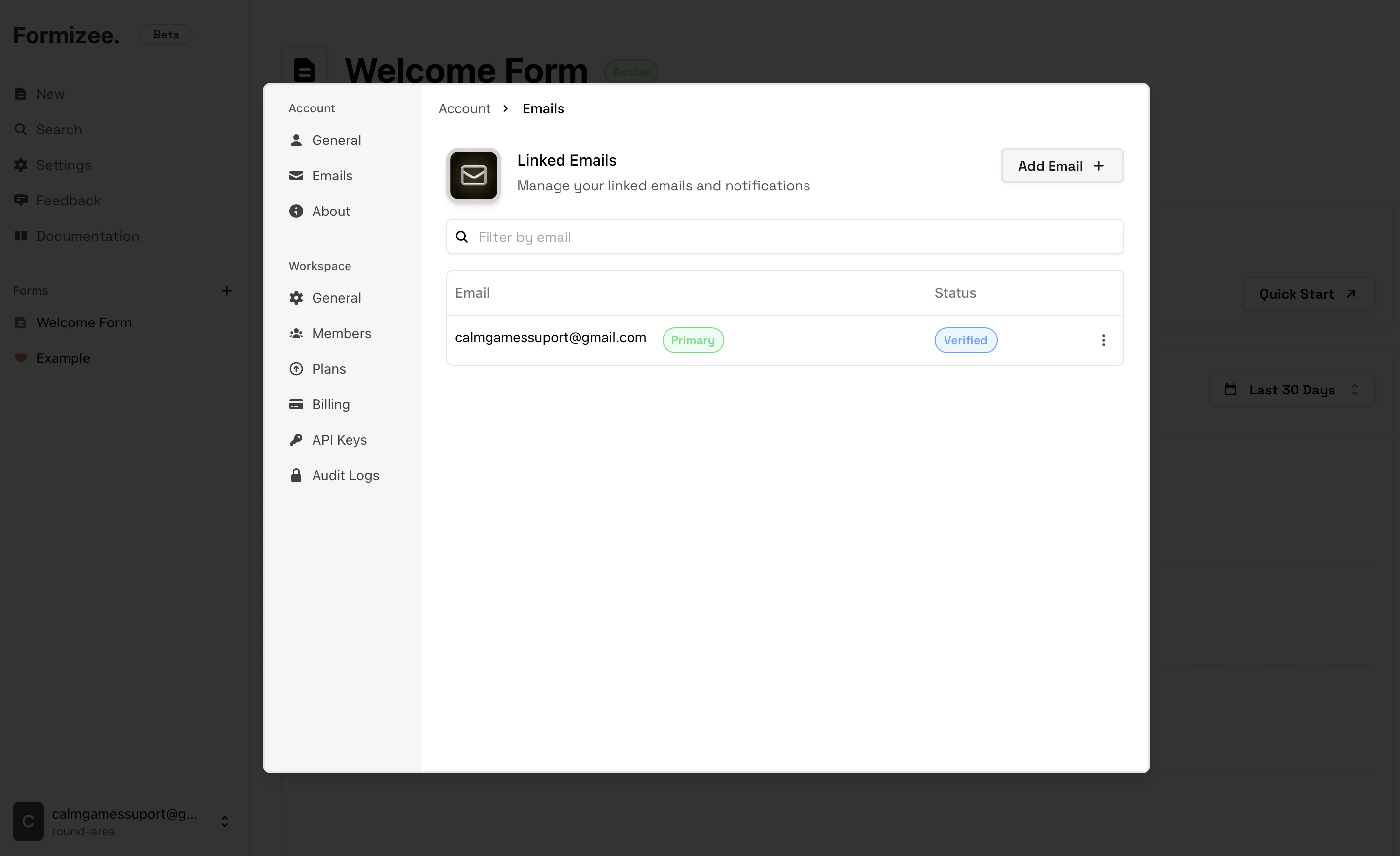
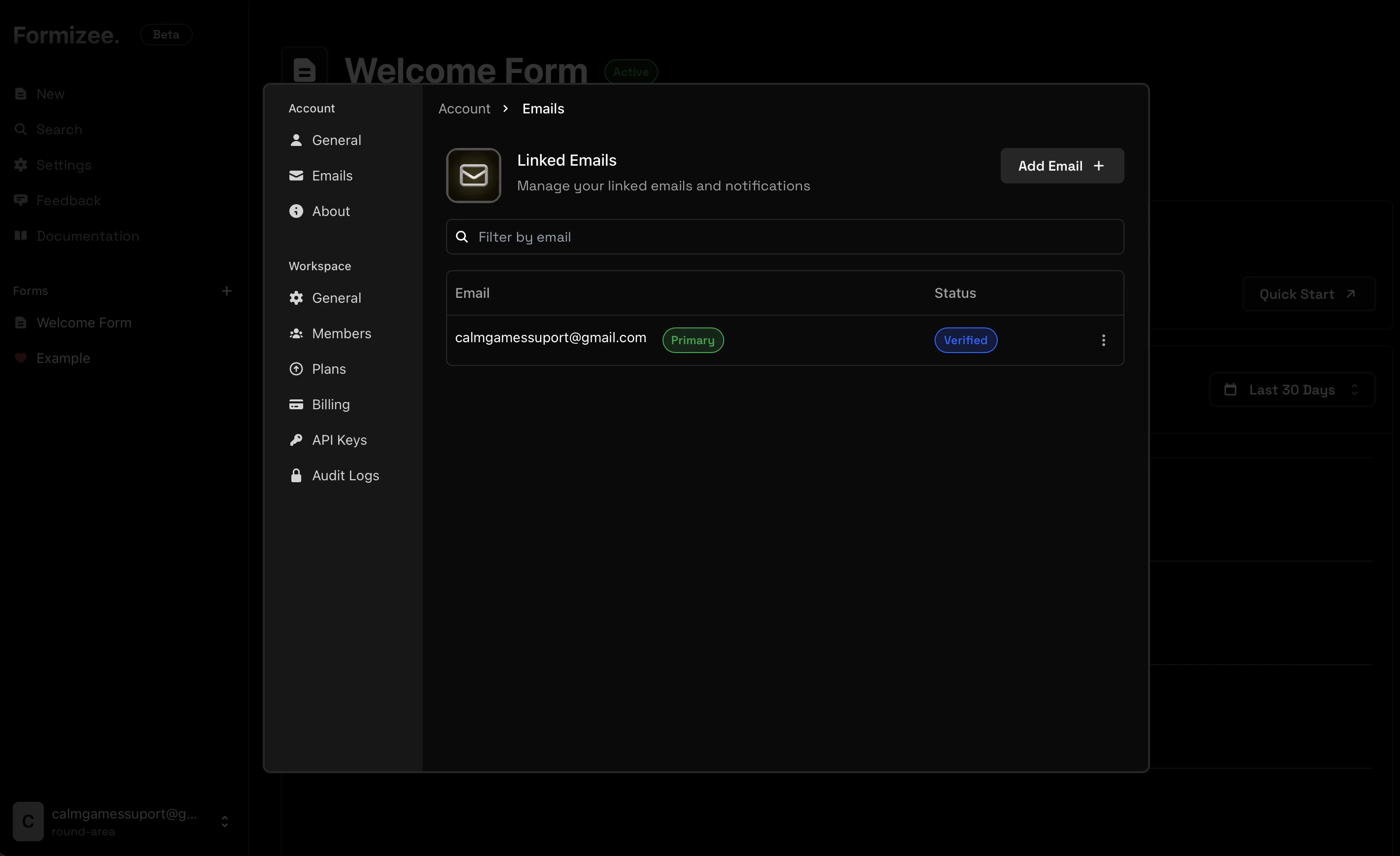
Now that we are inside the dashboard, we will click on the **"Settings"** button on the sidebar.
Then go to **Account > Linked Emails**
<Frame>
  <img className="block dark:hidden" src="https://mintcdn.com/formizee/UMqC5saRDgjM1LWR/assets/guides/add-a-linked-email/1-light.png?fit=max&auto=format&n=UMqC5saRDgjM1LWR&q=85&s=91175e28d7e2b5515445a264fc4bedac" alt="Settings Page" width="2840" height="1736" data-path="assets/guides/add-a-linked-email/1-light.png" />

  <img className="hidden dark:block" src="https://mintcdn.com/formizee/UMqC5saRDgjM1LWR/assets/guides/add-a-linked-email/1-dark.png?fit=max&auto=format&n=UMqC5saRDgjM1LWR&q=85&s=4bf234c20097a3cda1fb7a443ada9abc" alt="Settings Page" width="2840" height="1736" data-path="assets/guides/add-a-linked-email/1-dark.png" />
</Frame>

## 2. Add a new email

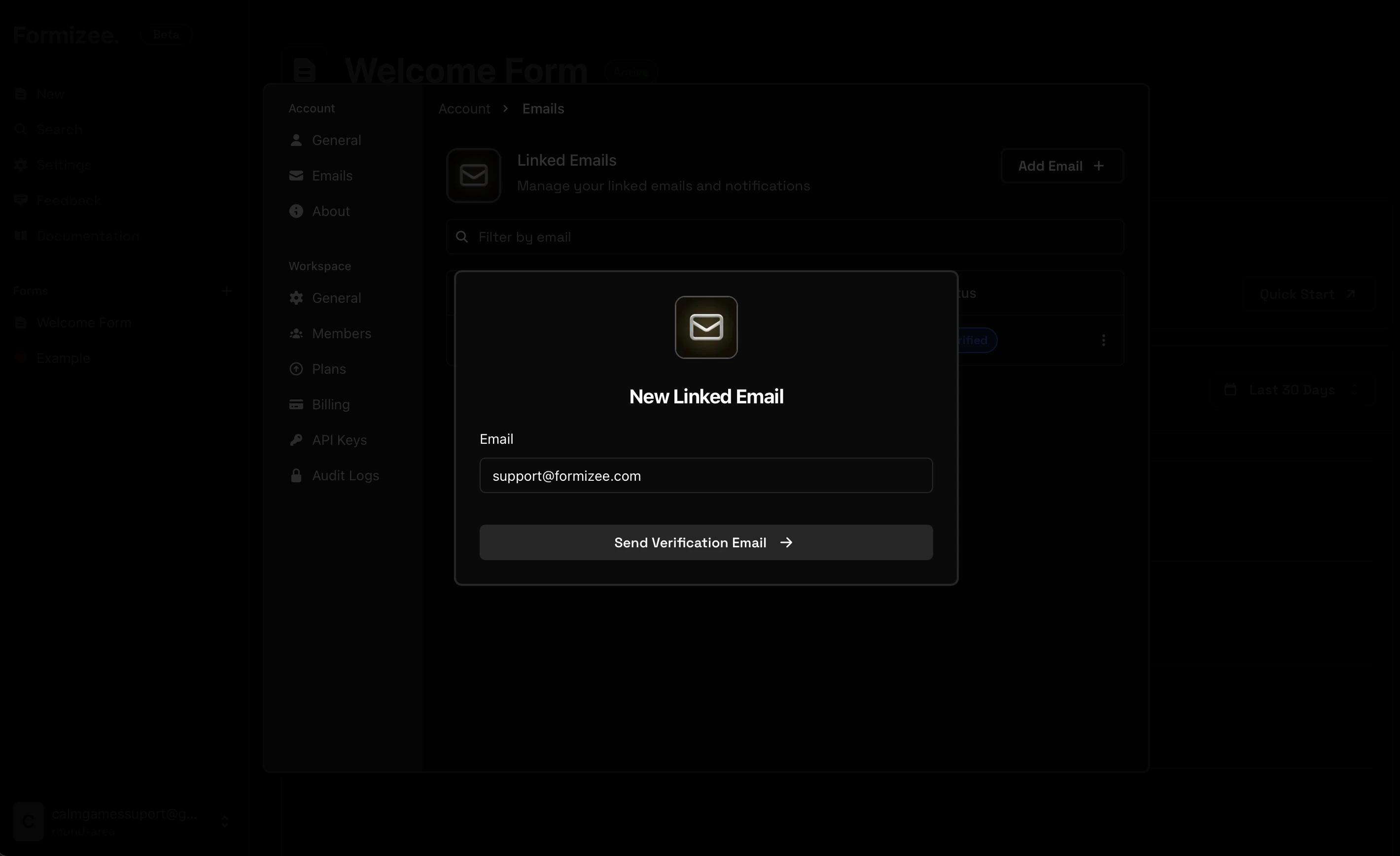
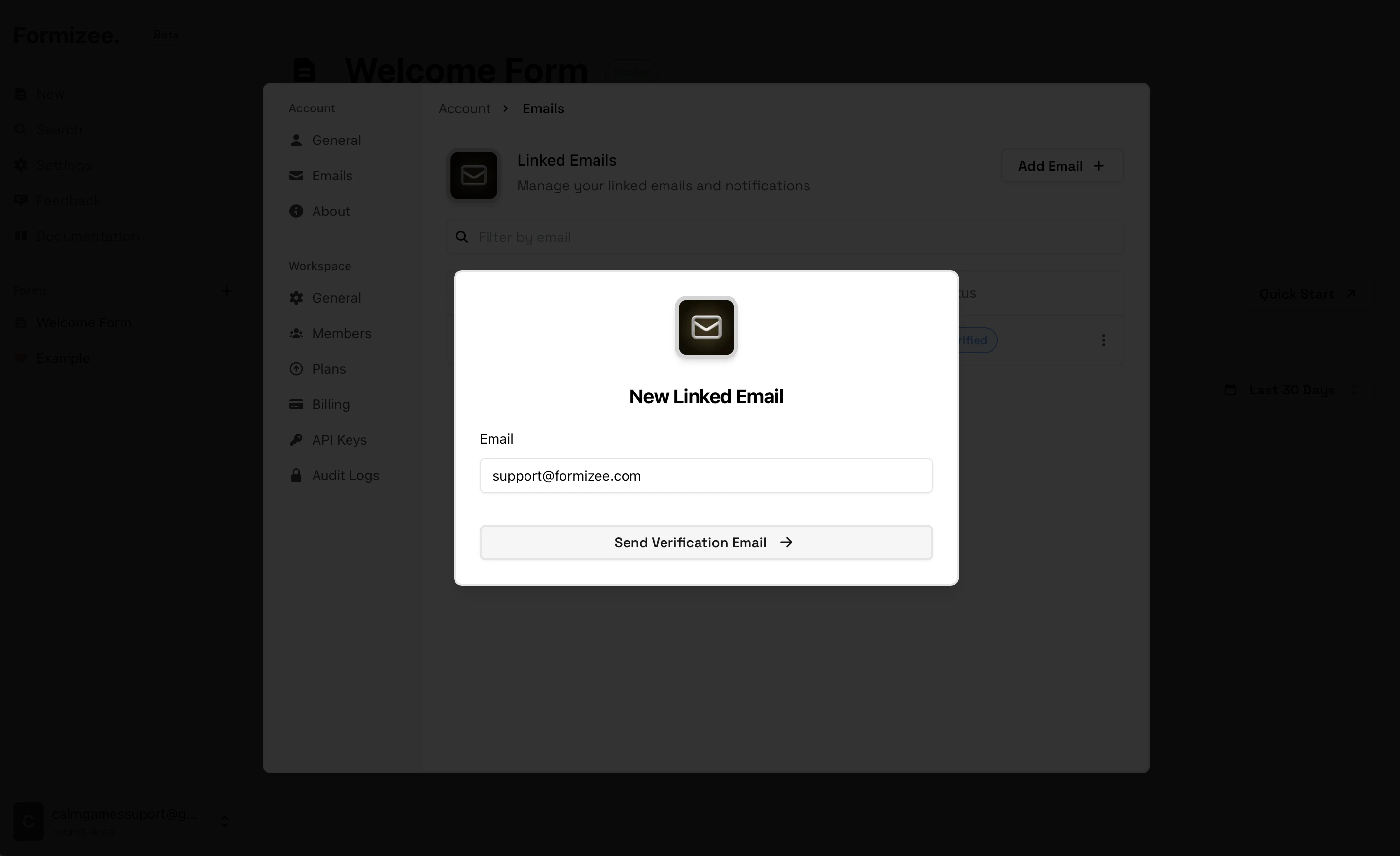
Now press on the **"Add Email"** button and put the email that you want link with Formizee.
<Frame>
  <img className="block dark:hidden" src="https://mintcdn.com/formizee/UMqC5saRDgjM1LWR/assets/guides/add-a-linked-email/2-light.png?fit=max&auto=format&n=UMqC5saRDgjM1LWR&q=85&s=7d1e1df806cf750ae180e8c88ca8fa14" alt="Add your email" width="2840" height="1736" data-path="assets/guides/add-a-linked-email/2-light.png" />

  <img className="hidden dark:block" src="https://mintcdn.com/formizee/UMqC5saRDgjM1LWR/assets/guides/add-a-linked-email/2-dark.png?fit=max&auto=format&n=UMqC5saRDgjM1LWR&q=85&s=1ae0a4ea1cc39cf0891e67d522a40441" alt="Add your email" width="2840" height="1736" data-path="assets/guides/add-a-linked-email/2-dark.png" />
</Frame>

This will send a email verification to the selected address.

## 3. Verify your email

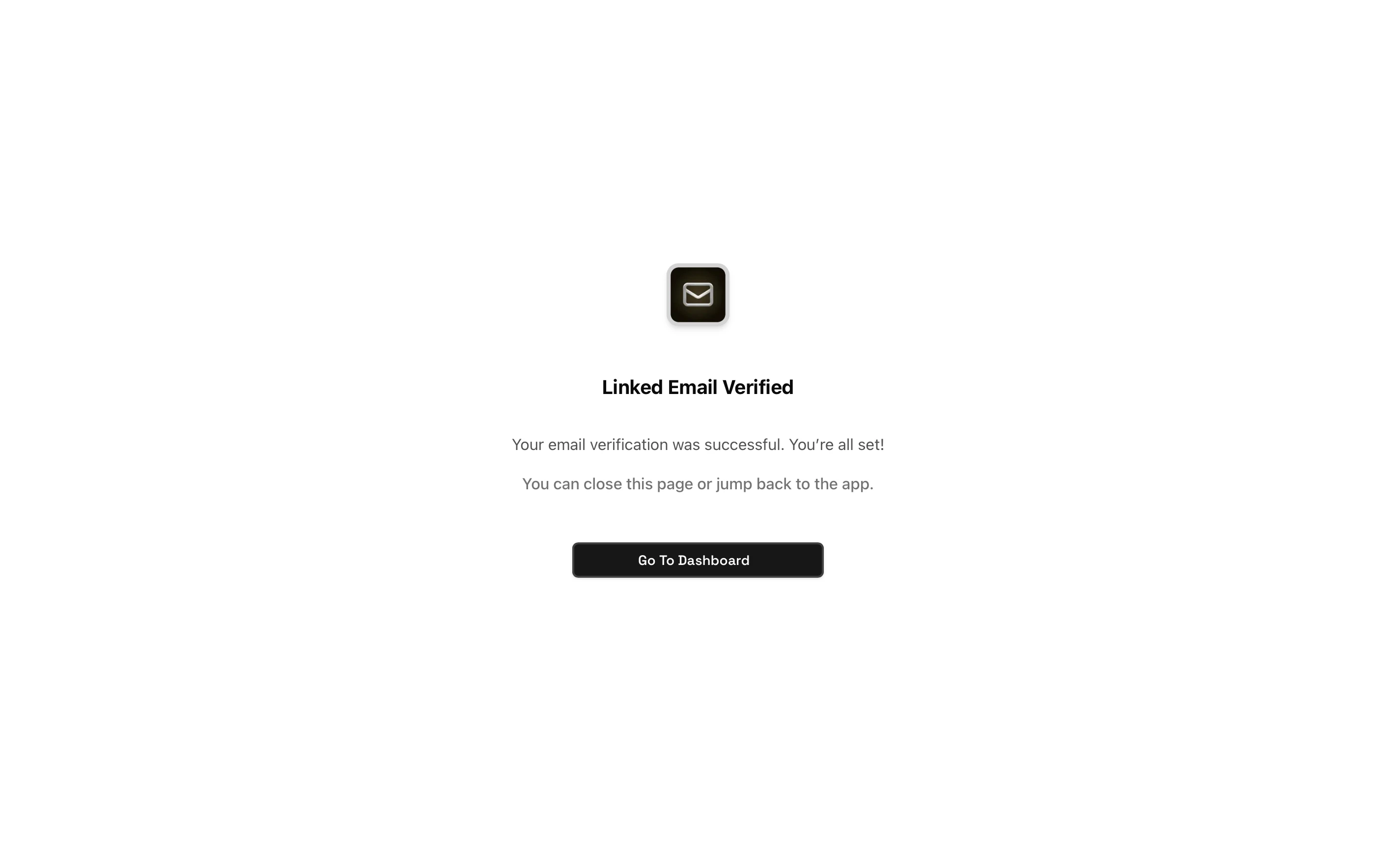
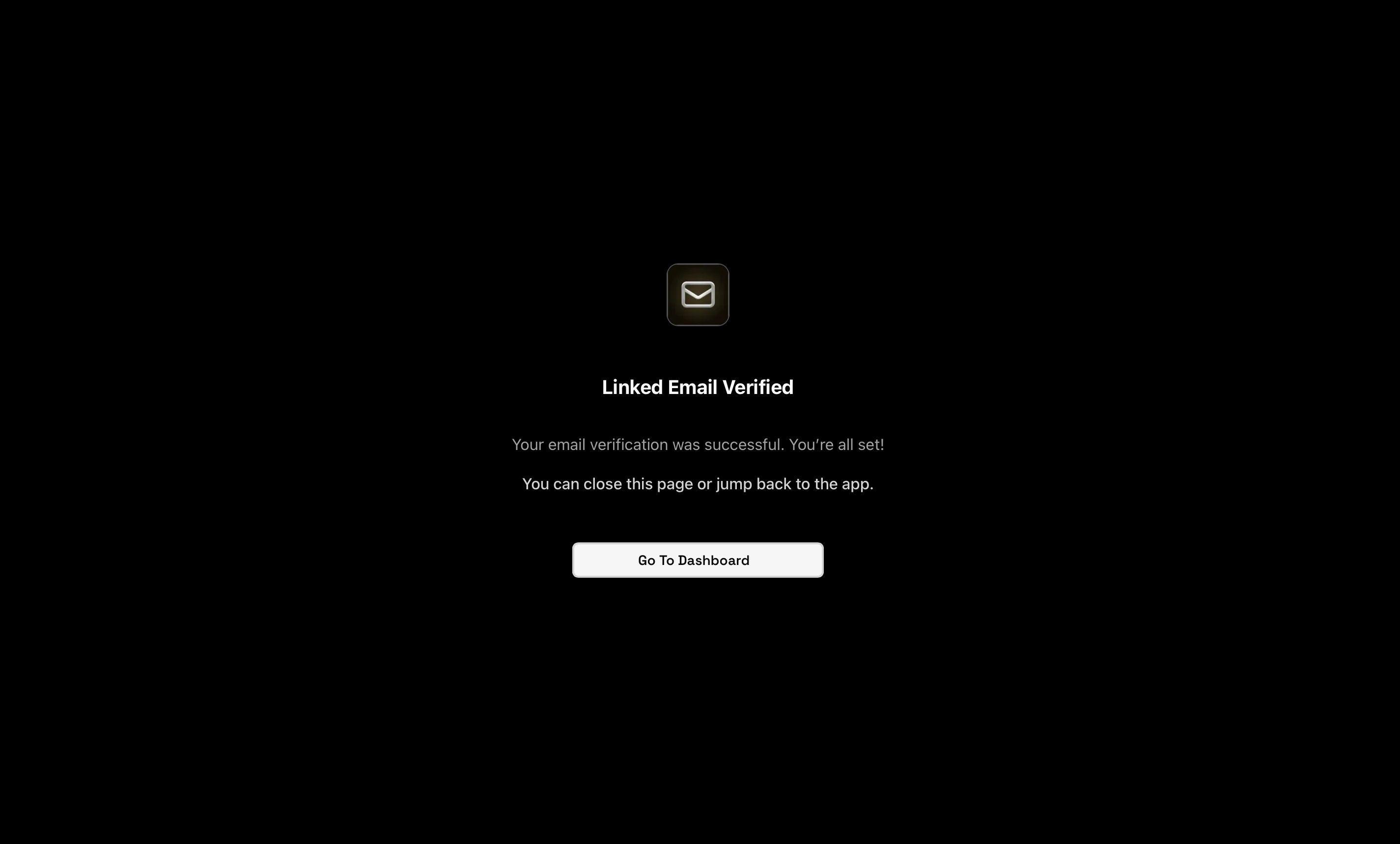
After you verify your address through the mail sended by Formizee, you should see that your new address is `verified`
<Frame>
  <img className="block dark:hidden" src="https://mintcdn.com/formizee/UMqC5saRDgjM1LWR/assets/guides/add-a-linked-email/3-light.png?fit=max&auto=format&n=UMqC5saRDgjM1LWR&q=85&s=e70dc416ef93ce8da670cd42e7f8e197" alt="Verification finished" width="2850" height="1718" data-path="assets/guides/add-a-linked-email/3-light.png" />

  <img className="hidden dark:block" src="https://mintcdn.com/formizee/UMqC5saRDgjM1LWR/assets/guides/add-a-linked-email/3-dark.png?fit=max&auto=format&n=UMqC5saRDgjM1LWR&q=85&s=9ef19e5f515034232ea870e588e22fb1" alt="Verification finished" width="2850" height="1718" data-path="assets/guides/add-a-linked-email/3-dark.png" />
</Frame>

## 5. Use your new linked email

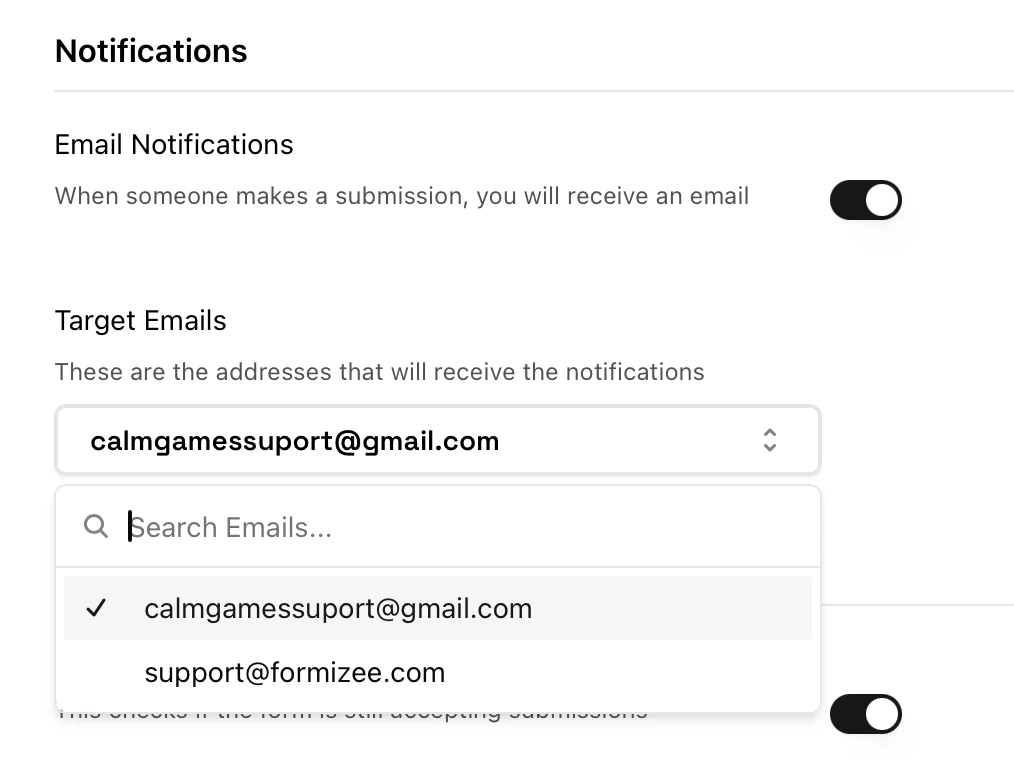
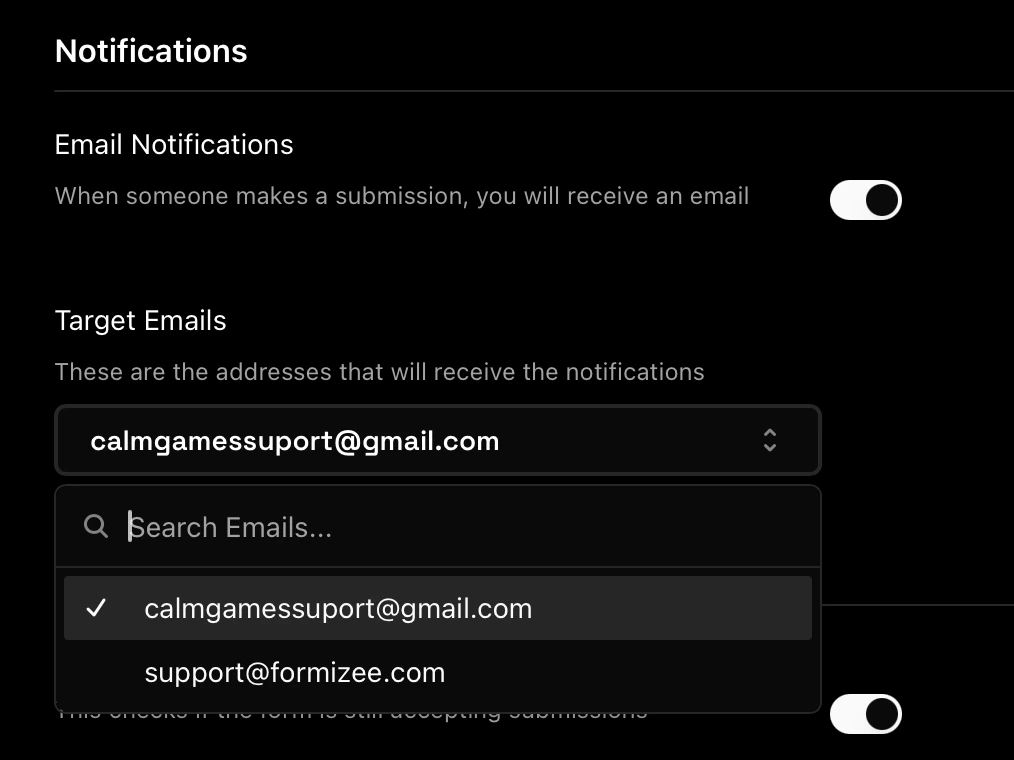
Now you can go to a form and add your new address to the `target emails`, this will trigger a notification when a submission is upload.
<Frame>
  <img width="400" className="block dark:hidden" src="https://mintcdn.com/formizee/UMqC5saRDgjM1LWR/assets/guides/add-a-linked-email/4-light.png?fit=max&auto=format&n=UMqC5saRDgjM1LWR&q=85&s=dc0c70aaa6c6cd91646c67505fc09e1f" alt="Adding target emails" data-path="assets/guides/add-a-linked-email/4-light.png" />

  <img width="400" className="hidden dark:block" src="https://mintcdn.com/formizee/UMqC5saRDgjM1LWR/assets/guides/add-a-linked-email/4-dark.png?fit=max&auto=format&n=UMqC5saRDgjM1LWR&q=85&s=50726e2361d5121f6d960403c377bff5" alt="Adding target emails" data-path="assets/guides/add-a-linked-email/4-dark.png" />
</Frame>